Welcome to NoodleSync
Your second brain,
built for Claude.
built for Claude.
A second brain is an external system that captures, organises, and connects everything you know -- so your actual brain stays free for thinking, not remembering. NoodleSync builds yours, designed from the ground up for Claude.
It draws on established personal knowledge management thinking, including Tiago Forte's PARA framework and CODE workflow, but adapts them to take full advantage of what modern AI actually makes possible: not just filing and retrieval, but active processing, synthesis, and real-world action. The result is a system that doesn't just hold your knowledge. It actually works with it.
Answer a few questions and NoodleSync generates a one-shot prompt that sets everything up inside Claude Cowork: your folder structure, instruction files, scheduled tasks, and all.
It draws on established personal knowledge management thinking, including Tiago Forte's PARA framework and CODE workflow, but adapts them to take full advantage of what modern AI actually makes possible: not just filing and retrieval, but active processing, synthesis, and real-world action. The result is a system that doesn't just hold your knowledge. It actually works with it.
Answer a few questions and NoodleSync generates a one-shot prompt that sets everything up inside Claude Cowork: your folder structure, instruction files, scheduled tasks, and all.
Click above to enlarge
↓ Download PDF
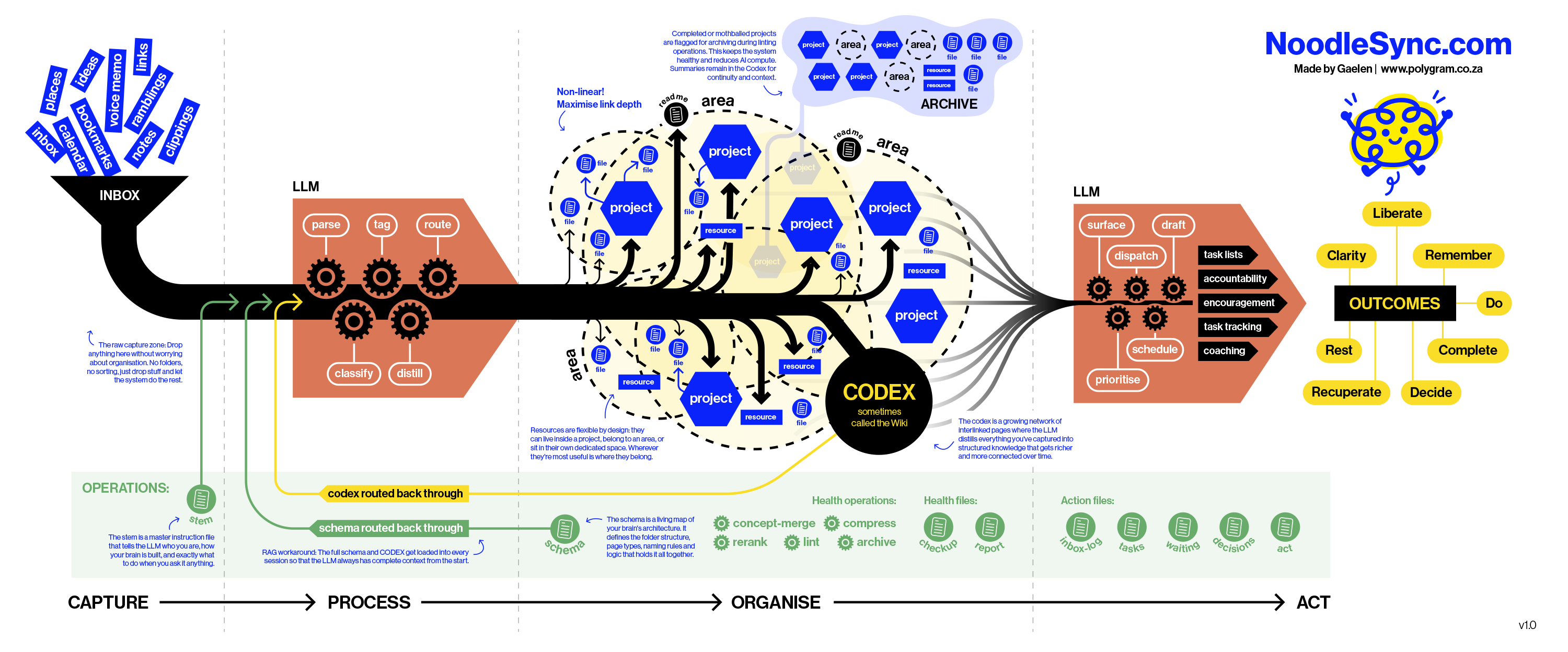
Everything in this system follows four stages. You Capture anything (voice notes, clippings, rough ideas) by dropping it in your Inbox without worrying about organisation. Claude Processes each item, reading for meaning, extracting entities and concepts. Everything is then Organised into Areas, Projects, Entities, Resources etc. This information is then synthesised and summarised in your CODEX, all maintained by Claude. The final stage is Act: your second-brain tracks what you are building, and guides you towards outcomes rather than just storing information. (The diagram above summarises the whole process, but you don't need dive into this level of detail).
Important: You will need a Claude Pro plan or higher for this to work. The free plan does not have Cowork functionality.
On the shoulders of giants: This system builds on the work of Tiago Forte (PARA & CODE) and was inspired by @defileo's post on X. Maggie Appleton's visual notes of Tiago's course were essential (and amazing).
Step 1 of 7
Name Your Noodle
Choose something short and personal. This is what you and Claude will call your second brain when you talk to each other. Two to four letters works best.
Brain name
Some examples: MOS (Mary's OS) · HAL · HIVE · CORE · ATLAS · PINKY etc.
How should Claude talk to you?
Brutal
Proceed with caution
Completely direct. No softening of feedback. Problems called out without regard to your feelings.
Firm but kind
Recommended
Honest and clear, with care for how it is delivered. The default for most people.
Very gentle
Warm and encouraging
Supportive framing, positive where possible. Honest, but never harsh.
Regardless of your choice, Claude has been instructed to never flatter or agree with you just to be agreeable.
Step 2 of 7
About you
Claude works best when it knows who it's talking to. By adding this info it can address you directly without you needing to re-introduce yourself at the start of every session.
Identity
One or two sentences is enough. Claude uses this as starting context, not a CV.
Step 3 of 8 -- Areas
Your Areas
Areas are the ongoing parts of your life that you maintain indefinitely, with no finish line. Your work, your creative practice, your health, your finances. These become the domain folders inside your second brain.
Your broad areas of life and work
Other examples: Writing, Mental Health, Learning, Reading, Finance, Side Hustles. Three to six is a good starting point.
Next step: Your Entities. People, organisations, places, jobs — the real-world things that live inside your areas. You'll link them to areas on the next page.
Step 4 of 8 -- Entities
Your Entities
Entities are the real-world things inside your areas. Adding them here builds a lookup table so Claude knows who or what you mean when you use shorthand, without spelling it out every session.
Entity Types:
What categories of real-world things does your second brain track? (People) is always included). Add other types below. Claude will create individual records for each as they come up during ingest.
Examples: Jobs (your roles and positions), Organisations (companies you work with), Places (locations that matter to you), Tools (software or equipment you rely on).
People
Role or relationship
🔒
People (Individual records):
Here you can add specific people in your life such as family members, close friends, colleagues, clients, collaborators etc. Over time Claude will learn who you mean when you describe the same people with different names, like “Jo”, “my partner” or “Jozie”. You can add more people later over time.
Step 5 of 8 -- Projects
Your active Projects
Projects are time-bound efforts with a defined endpoint. A website relaunch, a product release, an event, a deliverable with a deadline. They have a finish line, and they live separately from your Areas. Add a few active projects to get going.
Project name / one-line description / Linked areas
Two or three is enough to start. You can always update this later.
Step 6 of 8 -- Trackers
What do you want to track?
Trackers are structured, ongoing measurements of things that matter to you. Claude reads and updates them during sessions, keeping track of progress. They can connect to external services like your calendar or fitness data.
Always included
ON
Tasks
Your running to-do list. Claude updates this during every session.
ON
ACT
The master action tracker. Watches all your other trackers to see what's in progress, what's ready to produce, and what you've recently completed.
Tracker name / Description / Linked areas
Examples: Health (sleep, diet, mood), Work (job progress, time tracking), Reading list, Gym sessions, Habits etc. Link each tracker to one or more Areas to create graph connections.
Step 7 of 8 -- Automation
Scheduled tasks
Your second brain works best when it runs on a rhythm. The core tasks below are always active. You can also add optional tasks that suit your working style.
Always active
ON
Daily Ingest
Claude processes new content in your Inbox, updates your CODEX, and brings up anything that needs your attention.
Daily
ON
Weekly Health Check
Claude runs the reranker across your CODEX, updating citation counts, freshness scores, and page maturity. Then it flags any problems.
Fridays
ON
Monthly Health Review
Claude runs a full maintenance pass: updates all citation and freshness scores, reviews schema proposals, finds orphans, merge candidates, and archive candidates. Findings are written to health-checkup.md and surface once in your next normal chat. No action needed until you're ready.
First of each month
Optional tasks
Daily Task Review
A brief daily check-in: your tasks and what needs attention today. Useful if you want Claude to act as a daily assistant, not just a knowledge system.
Daily at a time you choose
Time
Monthly Big Picture Check-in
Claude steps back and reviews your projects, areas, and what your brain has ready to produce. It gives you a high-level view of where things stand and what might need more attention. Good for anyone who tends to get absorbed in detail and lose sight of the bigger picture.
First of each month
Once your second brain is set up, you can create additional custom scheduled tasks directly inside your Cowork project (or update the existing ones).
Step 8 of 8
Ready to build
Your second brain is configured. Follow the steps below to set everything up. It takes about ten minutes from start to finish.
1
Create your vault folder
Your second brain lives in a single folder on your computer. Create it now, before you do anything else. Give it the same name as your brain (e.g. GOS).
Where to put it: If you want to add content from your phone (voice note transcripts, quick text captures, photos), place the folder inside a location that is already synced to a cloud service: your iCloud Drive folder, Google Drive folder, Dropbox, or OneDrive folder. Files you drop there from your phone will appear on your computer automatically, ready for the next ingest.
If you only ever work from your computer, any local folder will do.
If you only ever work from your computer, any local folder will do.
2
Set up a Cowork project in Claude
You need the Claude desktop app with a Pro subscription. Cowork mode is where your second brain lives. It keeps context across sessions and supports scheduled tasks.
2.1
Install the Claude desktop app if you have not already. Download it from claude.ai/download. You will need a Pro subscription to use Cowork mode.
2.2
Open Claude. In the left sidebar, look for the Cowork icon (it looks like a small check-list). Click it. In the Cowork panel, click Projects.
Make sure you are looking at "Projects" inside the Cowork panel, NOT the regular Chat area. They are in separate sections of the sidebar, but look very similar.
2.3
Click the New project button (top right of the Projects screen).
2.4
In the dialog that appears, select Use an existing folder and choose the vault folder you just created in Step 1.
2.5
Name your project GOS. Insert the text below into the Instructions field. Hit Create. (The instruction can be added directly to the Cowork project at a later stage.)
At the start of every session, read CLAUDE.md and orient yourself before responding to any request. This file is your complete operating manual for this second brain.
3
Build your brain
Click the button below to generate your one-shot setup prompt. Then paste it into the chat window of your new Cowork project and send it. Claude will create all the folders, write your instruction file, and confirm when everything is ready.
If Claude asks to create folders or schedules, give permission. Warning: The initial setup takes a few minutes and uses quite a lot of compute tokens.
Paste this into your Claude Cowork chat window
4
Set up Obsidian Optional
Obsidian is a free program that gives you a beautiful interface to browse and read everything in your second brain. It is purely a reading layer (Claude does the writing and organising). You do not need it to run your second brain, but most people find it valuable once their system grows.
5.1
Download Obsidian for free from obsidian.md and install it.
5.2
Open Obsidian. On the startup screen, choose Open folder as vault and select your local vault folder, the same one you created in Step 1 and pointed Claude at in Step 2.
Once set up, have a look at Obsidian’s graph view. It shows everything you’ve built in a very cool visual way.
5
Next steps Optional
Once your brain is running, two integrations will make it significantly more powerful: seamless capture from your phone, and connecting Claude to your email and calendar.
Capture from your phone
The options below let you drop thoughts into your Inbox from your phone. They are ranked from simplest to most technical — pick the one that fits your comfort level.
1
Your phone’s notes app + cloud sync. If your Inbox folder sits inside iCloud Drive, Google Drive, or Dropbox, create a note on your phone (Apple Notes, Google Keep, etc.) and move or share it into the Inbox folder when you’re done. Zero setup if cloud sync is already running.
2
AudioPen. Record a voice note on your phone. AudioPen transcribes it and rewrites it into clean, readable text. Copy or export to your Inbox folder. Free tier available. No technical setup required.
3
Otter.ai. Similar to AudioPen but particularly good at longer recordings and meetings. Can email or auto-export transcripts. Set the export destination to your Inbox folder via cloud sync.
4
iPhone + iCloud + MacWhisper (Mac only). Record Voice Memos on iPhone. They sync via iCloud. Point MacWhisper at your Voice Memos folder and set it to auto-transcribe new files using OpenAI Whisper. Resulting text files drop into your Inbox folder automatically.
5
Local transcription script (any platform). Install whisper.cpp or
openai-whisper and write a small script that watches your audio folder and transcribes new files into your Inbox. Runs entirely offline, no subscription. Requires comfort with the terminal. [This is what I use.]
The more you use it, the smarter it gets
The more cross-linked markdown files your second brain accumulates, the better Claude gets at connecting ideas, finding patterns, and generating insight. Talk to it about everything, not just work. Many people find it becomes their most frictionless journaling tool: just speak your thoughts, and the system files, links, and remembers them for you.
The more cross-linked markdown files your second brain accumulates, the better Claude gets at connecting ideas, finding patterns, and generating insight. Talk to it about everything, not just work. Many people find it becomes their most frictionless journaling tool: just speak your thoughts, and the system files, links, and remembers them for you.
Connect Claude to Gmail and Calendar
With email and calendar access, Claude can read your incoming mail, draft replies, create and read calendar events, and bring up commitments and deadlines automatically during your daily ingest, without you having to copy anything across manually.
5.4
Install the Gmail and Calendar connectors in Cowork. In the Claude desktop app, open your second brain Cowork project and go to Settings → Connectors. Search for Gmail and Google Calendar and connect both. Once authorised, Claude can read threads, draft messages, and manage events directly from your project.
5.5
Tell your brain about it. Once connected, tell Claude: "I've connected Gmail and Calendar, update my instruction file to include email triage and calendar awareness in the daily ingest routine." You can also add this step to your scheduled tasks
A work in progress
Hi, I’m Gaelen and I built NoodleSync. It’s a work in progress and I’m still learning. Any advice or input would be most welcome. Feel free to reach out via polygram.co.za.
This project took a lot of research, time, and compute credits to build and refine. If it’s given you value, please consider buying me a coffee. It really helps me stay motivated.
Hi, I’m Gaelen and I built NoodleSync. It’s a work in progress and I’m still learning. Any advice or input would be most welcome. Feel free to reach out via polygram.co.za.
This project took a lot of research, time, and compute credits to build and refine. If it’s given you value, please consider buying me a coffee. It really helps me stay motivated.